
Learning Objectives – after this chapter you will be able to:
- Explain what XAMPP is, what its name means and which components it contains.
- Download and install XAMPP on Windows, Linux and macOS.
- Use the XAMPP Control Panel to start, stop and configure Apache and MySQL (MariaDB).
- Know the XAMPP folder structure –
htdocs,php.ini,httpd.conf,my.iniand the log files. - Write, save and run your first PHP page and open phpMyAdmin.
- Change ports, set the MySQL root password, create virtual hosts and solve common start-up problems.
What is XAMPP?
XAMPP is a free, open source, easy-to-install package that puts a complete web development server – the AMP stack of Chapter 1 and more – on your own computer. It is developed by Apache Friends and released under the GNU General Public License. It was first released in 2002.
The letters of the name stand for:
| Letter | Meaning |
|---|---|
| X | Cross-platform – runs on Windows, Linux and macOS. |
| A | Apache HTTP Server – the web server. |
| M | MariaDB (originally MySQL) – the database server. |
| P | PHP – the server-side scripting language used throughout this book. |
| P | Perl – another scripting language. |
XAMPP is distributed as one installer (or a zip/7z archive) and needs little or no configuration. Within a few minutes you have Apache, MariaDB, PHP and phpMyAdmin working together on http://localhost.
XAMPP is meant only for development and testing on your own machine. To make development easy, many security features are disabled by default (for example, the MariaDB root user has no password). Never use a default XAMPP installation as a public production server.
Components of XAMPP 8.2.12
The current XAMPP release, 8.2.12 (released 19 November 2023), is offered in three PHP flavours – 8.2.12, 8.1.25 and 8.0.30. The Windows package contains:
| Component | Version | Purpose |
|---|---|---|
| Apache HTTP Server | 2.4.58 | Web server |
| MariaDB | 10.4.32 | Database server (labelled "MySQL") |
| PHP | 8.2.12 | Server-side scripting language |
| phpMyAdmin | 5.2.1 | Browser-based database administration |
| OpenSSL | 3.1.3 | HTTPS / SSL support |
| XAMPP Control Panel | 3.2.4 | Start/stop and configure modules |
| Webalizer | – | Web server log statistics |
| Mercury Mail Transport System | 4.63 | Local mail (SMTP/POP3) server |
| FileZilla FTP Server | 0.9.41 | FTP server |
| Tomcat | 8.5.96 | Java servlet container |
| Strawberry Perl | 5.32.1.1 Portable | Perl interpreter |
The Linux and macOS packages contain Apache, MariaDB, PHP with PEAR, phpMyAdmin, OpenSSL, Perl, ProFTPD and SQLite instead of the Windows-only tools.
Which XAMPP should I download? For this book choose the newest one – XAMPP 8.2.12 / PHP 8.2. Every program in this book uses PHP 8 syntax. (The outputs printed in this book were produced on Apache 2.4.58 with PHP 8.3 and MariaDB 10.11; on XAMPP 8.2.12 the results are the same, except that version numbers and file paths in the output differ.)
System Requirements
| Item | Requirement |
|---|---|
| Windows | 64-bit Windows (Vista or later; Windows 10/11 recommended) with the Microsoft Visual C++ 2017 redistributable |
| Linux | 64-bit Linux distribution (Ubuntu, Debian, Fedora …) |
| macOS | macOS 10.6 or later (Intel); the latest macOS build is XAMPP 8.2.4 |
| Disk space | About 150 MB download and roughly 1 GB after installation |
| Memory | 2 GB RAM or more |
| Browser | Any modern browser – Chrome, Edge, Firefox, Safari |
| Editor | Any text editor – VS Code, Notepad++, Sublime Text … |
Downloading XAMPP
- Open the official site https://www.apachefriends.org and click Download.
- Choose your operating system and the PHP version (8.2.12 recommended).
- For Windows you get a file such as
xampp-windows-x64-8.2.12-0-VS16-installer.exe(about 149 MB).
Download XAMPP only from apachefriends.org or its official SourceForge mirror. Third-party download sites may bundle extra, unwanted software with the installer.
Installing XAMPP on Windows
C:\Program Files. Click OK – we will install in C:\xampp.C:\Program Files. Click Next.Figure 2.1 – The XAMPP installation wizard on Windows
Installing XAMPP on Linux and macOS
Linux – the installer is a .run file. Make it executable and run it as root:
chmod 755 xampp-linux-x64-8.2.12-0-installer.run
sudo ./xampp-linux-x64-8.2.12-0-installer.run

# XAMPP is installed in /opt/lampp
sudo /opt/lampp/lampp start          # start Apache, MySQL (MariaDB) and ProFTPD
sudo /opt/lampp/lampp stop           # stop all
sudo /opt/lampp/lampp startapache    # start only Apache
sudo /opt/lampp/lampp startmysql     # start only MariaDB
sudo /opt/lampp/manager-linux-x64.run   # graphical manager
macOS – open the .dmg file, drag XAMPP into Applications and run XAMPP manager-osx from /Applications/XAMPP. The web root on macOS is /Applications/XAMPP/xamppfiles/htdocs.
The XAMPP Control Panel
The XAMPP Control Panel (C:\xampp\xampp-control.exe) is the heart of XAMPP on Windows. Each server is one row ("module"):
| Column / Button | Use |
|---|---|
| Service (✗ / ✓) | Click to install or remove the module as a Windows service (needs administrator rights). A service starts automatically when Windows starts. |
| Module | The name of the server – Apache, MySQL, FileZilla, Mercury, Tomcat. A running module is shown with a green background. |
| PID(s) | Process ID(s) of the running server. |
| Port(s) | The TCP port(s) the server listens on, e.g. 80, 443 for Apache, 3306 for MySQL. |
| Start / Stop | Starts or stops that server. |
| Admin | Opens the server's administration page – for Apache http://localhost/ (XAMPP dashboard), for MySQL http://localhost/phpmyadmin/. |
| Config | Opens that module's configuration files – for Apache: httpd.conf, httpd-ssl.conf, httpd-xampp.conf, PHP (php.ini), phpMyAdmin (config.inc.php); for MySQL: my.ini. |
| Logs | Opens the module's log files – Apache error.log, access.log, PHP error log; MySQL mysql_error.log. |
The buttons on the right of the window are:
| Button | Use |
|---|---|
| Config | Settings of the Control Panel itself – editor, browser, Autostart of modules, and Service and Port Settings (change the ports the panel checks). |
| Netstat | Shows all ports in use on the computer and which program uses them – very useful when a port is busy. |
| Shell | Opens a command window with XAMPP paths set, so commands such as mysql -u root and php -v work directly. |
| Explorer | Opens the C:\xampp folder. |
| Services | Opens the Windows Services manager. |
| Help | Opens the help/FAQ. |
| Quit | Closes the Control Panel (running servers keep running). |
The log area at the bottom of the window shows messages such as "Attempting to start Apache app…", "Status change detected: running" or errors such as "Port 80 in use by …".
Default ports
| Module | Default port(s) | Used for |
|---|---|---|
| Apache | 80, 443 | HTTP and HTTPS |
| MySQL (MariaDB) | 3306 | Database connections |
| FileZilla | 21, 14147 | FTP, admin interface |
| Mercury | 25, 79, 105, 106, 110, 143, 2224 | SMTP, POP3, IMAP … |
| Tomcat | 8005, 8080, 8009 | Shutdown, HTTP, AJP |
Starting Apache and MySQL
- Open the XAMPP Control Panel.
- Click Start next to Apache. After a moment the module name turns green and the PID and ports (
80, 443) appear. - Click Start next to MySQL. It turns green with port
3306. - Click Admin next to Apache, or open a browser and type
http://localhost/. You see the XAMPP dashboard ("Welcome to XAMPP for Windows 8.2.12"). - Click Admin next to MySQL, or open
http://localhost/phpmyadmin/, to open phpMyAdmin.
localhost is the name your computer uses for itself; its IP address is 127.0.0.1. When you type http://localhost/ the request never leaves your machine – it goes straight to the Apache server started from XAMPP.
The XAMPP Folder Structure
| Path (Windows) | Contents |
|---|---|
| C:\xampp\htdocs | Web root – put your PHP files and project folders here. http://localhost/x.php runs C:\xampp\htdocs\x.php. |
| C:\xampp\php\php.ini | PHP configuration file. |
| C:\xampp\php\logs\php_error_log | PHP error log. |
| C:\xampp\apache\conf\httpd.conf | Main Apache configuration (ports, DocumentRoot, modules). |
| C:\xampp\apache\conf\extra\httpd-vhosts.conf | Virtual hosts. |
| C:\xampp\apache\conf\extra\httpd-xampp.conf | XAMPP aliases – e.g. /phpmyadmin. |
| C:\xampp\apache\logs | Apache access.log and error.log. |
| C:\xampp\mysql\bin\my.ini | MariaDB configuration (port, data directory). |
| C:\xampp\mysql\data | The database files – one folder per database. |
| C:\xampp\phpMyAdmin\config.inc.php | phpMyAdmin settings (user/password). |
| C:\xampp\mailoutput | Mails captured by the mailToDisk tool (see Chapter 15). |
| C:\xampp\tmp | Temporary files, uploaded files and session files. |
On Linux the same folders are under /opt/lampp (for example /opt/lampp/htdocs, /opt/lampp/etc/php.ini, /opt/lampp/etc/httpd.conf).
Your First PHP Page
All programs in this book are stored in a folder phpbook inside htdocs, with one sub-folder per chapter. For this chapter create the folder C:\xampp\htdocs\phpbook\ch02.
- Open your editor (VS Code, Notepad++ …).
- Type the program below.
- Save it as
C:\xampp\htdocs\phpbook\ch02\hello.php– the extension must be .php (in Notepad choose Save as type: All Files). - Make sure Apache is running, then open
http://localhost/phpbook/ch02/hello.phpin the browser.
<!DOCTYPE html>
<html>
<head><title>My first PHP page</title></head>
<body>
<h1>Hello from XAMPP!</h1>
<?php
echo "PHP is working. Today is " . date("l") . ".";
?>
</body>
</html>Hello from XAMPP! PHP is working. Today is Thursday.
Never open a PHP file by double-clicking it (the address bar would show file:///C:/xampp/...). PHP runs only when the file is requested through the web server, i.e. through http://localhost/....
Checking the PHP installation
The built-in function phpinfo() displays every detail of the PHP configuration: the version, the loaded php.ini, all extensions and their settings.
<?php
phpinfo();
?>
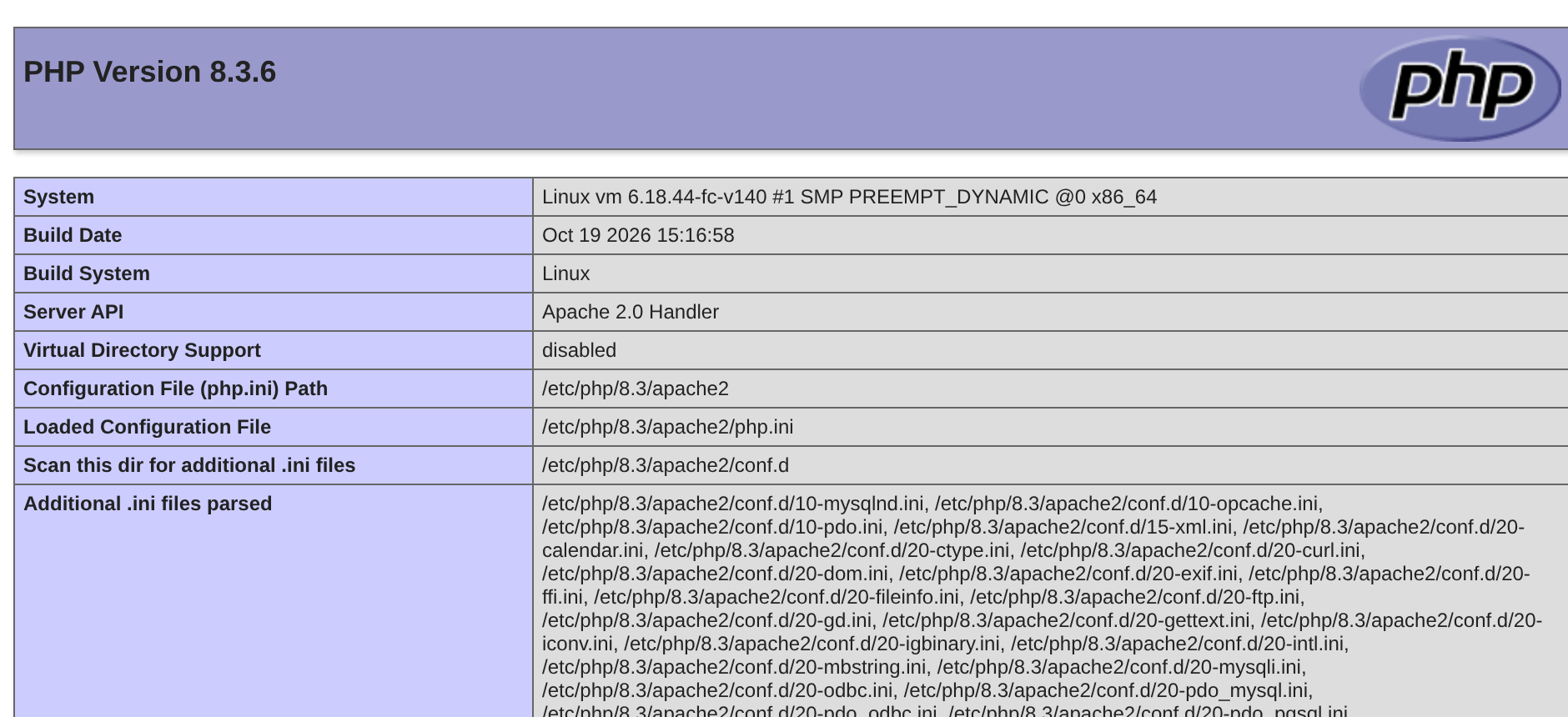
A shorter check that prints only the facts we need:
<?php
echo "PHP version : " . PHP_VERSION . "<br>";
echo "Server API  : " . php_sapi_name() . "<br>";
echo "mysqli      : " . (extension_loaded('mysqli') ? 'loaded' : 'NOT loaded') . "<br>";
echo "Upload limit: " . ini_get('upload_max_filesize') . "<br>";
echo "Timezone    : " . date_default_timezone_get();
?>PHP version : 8.3.6 Server API : apache2handler mysqli : loaded Upload limit: 40M Timezone : Asia/Kolkata
Checking the database server
The next program connects to MariaDB with the default XAMPP account – user root with an empty password – using the MySQLi extension (studied in Part IV).
<?php
$conn = mysqli_connect("localhost", "root", "");
if (!$conn) {
    die("Connection failed: " . mysqli_connect_error());
}
echo "Connected to the database server.<br>";
echo "Server version: " . mysqli_get_server_info($conn);
mysqli_close($conn);
?>Connected to the database server. Server version: 10.11.14-MariaDB-0ubuntu0.24.04.1
phpMyAdmin
phpMyAdmin is a free web application, written in PHP, for managing MySQL/MariaDB databases through the browser. Open it with http://localhost/phpmyadmin/. With it you can:
- Create and drop databases and tables (Databases and Structure tabs).
- Insert, browse, edit and delete rows (Insert and Browse tabs).
- Run any SQL statement (SQL tab).
- Import and export databases as
.sqlfiles (Import / Export tabs) – the easiest way to move a project to another computer or to a hosting server. - Manage user accounts and privileges (User accounts tab).
Part IV of this book uses phpMyAdmin and the MariaDB monitor to create the databases used by the PHP/MySQLi programs.
Important php.ini Settings
Open Config → PHP (php.ini) in the Control Panel. After every change, Stop and Start Apache so that the new setting is loaded.
| Directive | XAMPP value | Meaning |
|---|---|---|
| display_errors | On | Show errors in the browser (development only). |
| error_reporting | E_ALL | Report all errors, warnings and notices. |
| max_execution_time | 120 | Maximum seconds a script may run. |
| memory_limit | 512M | Maximum memory a script may use. |
| upload_max_filesize | 40M | Largest file that can be uploaded. |
| post_max_size | 40M | Largest POST body (must be ≥ upload size). |
| date.timezone | Europe/Berlin | Default time zone – change it to Asia/Kolkata for India. |
| extension=mysqli | enabled | Loads the MySQLi extension. |
| SMTP / smtp_port | localhost / 25 | Mail server used by mail() (Chapter 15). |
| session.save_path | \xampp\tmp | Where session files are stored. |
[Date]
; Defines the default timezone used by the date functions
date.timezone=Asia/Kolkata
Important httpd.conf Settings
Listen 80
ServerName localhost:80
DocumentRoot "C:/xampp/htdocs"
<Directory "C:/xampp/htdocs">
    Options Indexes FollowSymLinks Includes ExecCGI
    AllowOverride All
    Require all granted
</Directory>
DirectoryIndex index.php index.pl index.cgi index.asp index.shtml index.html index.htm- Listen – the port Apache listens on.
- DocumentRoot – the folder that is served as
http://localhost/. - AllowOverride All – allows
.htaccessfiles (Chapter 22) to change settings per folder. - DirectoryIndex – the file shown when only a folder is requested (
index.phpfirst).
Changing Apache's port (port 80 busy)
If another program (Skype, IIS – World Wide Web Publishing Service, VMware, a VPN client …) already uses port 80 or 443, Apache cannot start and the log shows "Port 80 in use by …". Either stop that program or move Apache to another port:
- Control Panel → Apache Config → httpd.conf: change
Listen 80toListen 8080andServerName localhost:80toServerName localhost:8080. - If 443 is busy: Config → httpd-ssl.conf: change
Listen 443toListen 4433and<VirtualHost _default_:443>to<VirtualHost _default_:4433>. - Control Panel Config → Service and Port Settings → Apache: set the main port 8080 and SSL port 4433.
- Start Apache and open
http://localhost:8080/.
Changing the MySQL port (port 3306 busy)
If another MySQL server is installed, port 3306 may be in use. In MySQL → Config → my.ini change port=3306 (in both the [client] and [mysqld] sections) to port=3307. In PHP you then connect with mysqli_connect("localhost", "root", "", "db", 3307).
Setting a Password for the MySQL root User
By default the MariaDB user root has no password. To set one:
- In phpMyAdmin open User accounts, click Edit privileges for
root/localhost, then Change password; enter the new password and click Go. - phpMyAdmin will now show "Access denied". Open
C:\xampp\phpMyAdmin\config.inc.phpand set the same password:
$cfg['Servers'][$i]['auth_type'] = 'config';
$cfg['Servers'][$i]['user']      = 'root';
$cfg['Servers'][$i]['password']  = 'your_new_password';
- Use the same password in your PHP programs:
mysqli_connect("localhost", "root", "your_new_password").
The programs in this book use the XAMPP default – user root with an empty password. If you set a root password, change the connection lines accordingly, or better, create a separate user for your application (Chapter 32).
Virtual Hosts
A virtual host lets you open a project with its own name, such as http://phpbook.test/, instead of http://localhost/phpbook/.
<VirtualHost *:80>
    ServerName localhost
    DocumentRoot "C:/xampp/htdocs"
</VirtualHost>

<VirtualHost *:80>
    ServerName phpbook.test
    DocumentRoot "C:/xampp/htdocs/phpbook"
</VirtualHost>
Then add the name to the Windows hosts file (C:\Windows\System32\drivers\etc\hosts, edited as administrator) and restart Apache:
127.0.0.1 phpbook.test
Using the XAMPP Shell
Click Shell in the Control Panel. The window opens in C:\xampp with the php and mysql programs on the path:
# php -v                       → shows the PHP version
# php -r "echo 5+7;"           → runs one line of PHP
# mysql -u root                → opens the MariaDB monitor
MariaDB [(none)]> SHOW DATABASES;
MariaDB [(none)]> exit
Running Apache and MySQL as Windows Services
Start the Control Panel as administrator and click the red ✗ in the Service column next to Apache and MySQL. It turns into a green ✓ – the servers are now installed as Windows services and start automatically every time Windows starts. Click the ✓ again to remove the service. In Config → Autostart of modules you can instead make the Control Panel start chosen modules whenever it opens.
Common Problems and Solutions
| Problem | Solution |
|---|---|
| Apache does not start – "Port 80 in use" | Find the program with Netstat; stop IIS/Skype/VMware or change Apache to port 8080 (see above). |
| Apache stops immediately after start | Open Logs → Apache (error.log); usually a typing mistake in httpd.conf, or port 443 busy. |
| MySQL shutdown unexpectedly | Port 3306 busy, or the data files were damaged by an improper shutdown. Check Logs → mysql_error.log; stop the other MySQL service; restore from mysql\backup if needed. |
| Page shows the PHP source code | The file was opened as file:///… or saved with a .html/.txt extension. Save as .php in htdocs and open through http://localhost/. |
| "Object not found!" (404) | The path in the URL does not match the folder/file name in htdocs. Names are case-sensitive on Linux. |
| phpMyAdmin: "Access denied for user root" | The root password in config.inc.php does not match the database password. |
| "Call to undefined function mysqli_connect()" | extension=mysqli is commented out in php.ini – remove the ; and restart Apache. |
| Changes in php.ini have no effect | Restart Apache; check with phpinfo() which php.ini is loaded. |
| Antivirus blocks XAMPP | Add C:\xampp to the antivirus exclusions. |
Backing Up and Uninstalling
- Back up a project: copy its folder from
htdocsand export its database from phpMyAdmin (Export → SQL). - Uninstall: stop all modules, remove services, then run
C:\xampp\uninstall.exe. Before uninstalling, save yourhtdocsfolders and export your databases – themysql\datafolder is deleted.
Key Takeaways
- XAMPP = cross-platform Apache + MariaDB + PHP + Perl, from Apache Friends; current release 8.2.12 (Apache 2.4.58, MariaDB 10.4.32, PHP 8.2.12, phpMyAdmin 5.2.1).
- Install it in
C:\xampp(not Program Files) and start Apache and MySQL from the Control Panel. - Put PHP files in
C:\xampp\htdocsand always open them throughhttp://localhost/…. php.ini,httpd.confandmy.iniconfigure PHP, Apache and MariaDB; restart the module after a change.- Default ports are 80/443 (Apache) and 3306 (MySQL); use Netstat and the logs when a module does not start.
- The default database user is
rootwith an empty password – fine for learning, never for production.
Program File
Extract the ZIP into C:\xampp\htdocs. It creates the folder phpbook/ch02 used in the file labels above; open the programs at http://localhost/phpbook/… with Apache (and MySQL, where needed) started in the XAMPP Control Panel.
Question / Answer (15 questions)
MCQ Test : Check Your Understanding (5 questions)
Select an option and press Check Answer, or answer all questions and press Submit Test to see your score. Each answer comes with an explanation.
Bibliography/References
The notes on this page are the author’s own compilation from the e-book PHP: Basics to Advance. Every program was run on Apache with PHP 8 and MariaDB, and the output shown is the real result of that run. The works listed below were consulted and are cited for attribution and further reading. Product names and trademarks belong to their respective owners.
- Apache Friends. (n.d.). XAMPP Installers and Downloads for Apache Friends. https://www.apachefriends.org/
- Apache Friends. (n.d.). Download XAMPP. https://www.apachefriends.org/download.html
- Apache Friends. (2023). New XAMPP release 8.2.12, 8.1.25 and 8.0.30. https://www.apachefriends.org/blog/new_xampp_20231119.html
- Wikipedia contributors. (n.d.). XAMPP. Wikipedia, The Free Encyclopedia. https://en.wikipedia.org/wiki/XAMPP
- The Apache Software Foundation. (n.d.). Apache HTTP Server Version 2.4 Documentation. https://httpd.apache.org/docs/2.4/
- The PHP Group. (n.d.). PHP Manual – The configuration file (php.ini). https://www.php.net/manual/en/configuration.file.php
- phpMyAdmin contributors. (n.d.). phpMyAdmin Documentation. https://docs.phpmyadmin.net/